

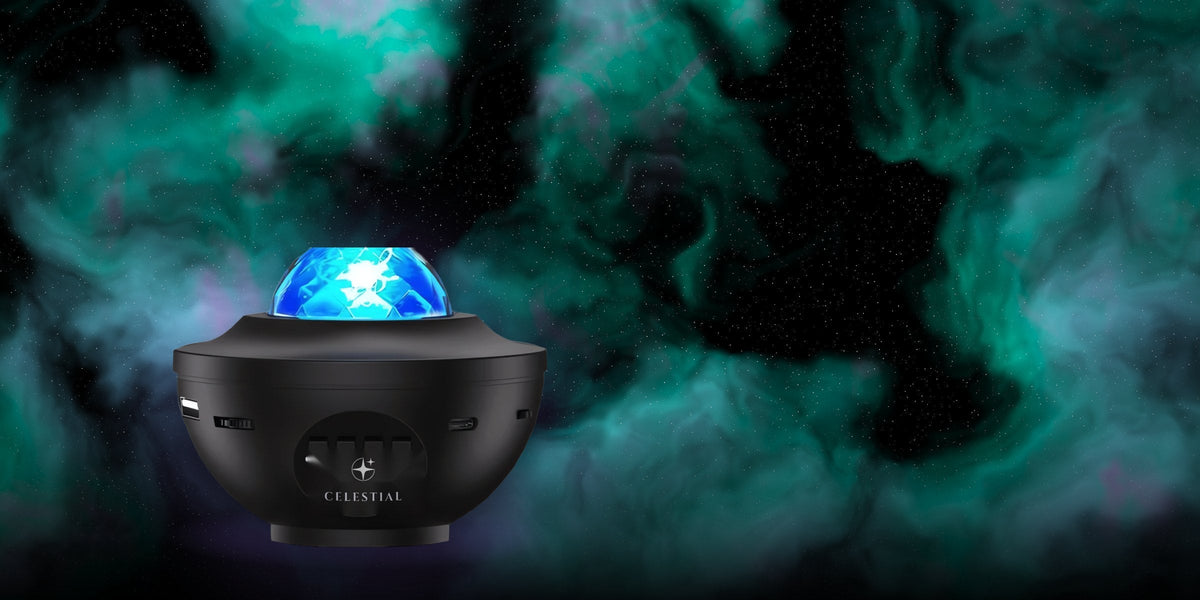
There is nothing quite as annoying as reaching for your galaxy projector at bedtime and finding it stuck, dim, or completely unresponsive. The good news is that most galaxy projector problems come down to a small handful of common causes, and most of them are fixable in a few minutes without needing to contact support or replace the unit. This guide walks through the most frequent issues people run into, organized by symptom, along with practical steps to try before assuming the worst.
Quick Answer: Why Is My Galaxy Projector Not Working?
Most galaxy projector problems come down to a loose power connection, a drained or improperly inserted battery, a dirty or misaligned lens, or a setting like brightness or timer that got changed accidentally. Checking the power source, cleaning the lens, and resetting the device to default settings resolves the majority of issues without needing a replacement.
Why Galaxy Projectors Stop Working Properly
Before troubleshooting specific symptoms, it helps to understand the general categories these problems usually fall into. Most issues are related to power, either a loose connection, a drained battery, or an outlet problem. Others come down to the optical components, dust, misalignment, or a dirty lens affecting image quality. And a smaller group of issues are software or control related, covering remotes, apps, and Bluetooth connections on smart models. Knowing which category your problem falls into makes it much faster to find the right fix below.
If you want a refresher on how these devices work internally before troubleshooting, our guide on How Does a Galaxy Projector Work? covers the LED, lens, and disc technology behind these devices.
Common Problems and How to Fix Them
1. The Projector Will Not Turn On At All
Start with the basics before assuming a hardware failure. Confirm the power cable is fully seated in both the projector and the outlet, and test the outlet with another device to rule out a dead socket. For battery powered models, check that batteries are inserted with the correct polarity and are not depleted, since a projector can appear completely dead with weak batteries even if the power switch is in the on position. If your model has a physical power button separate from a touch sensor, make sure you are pressing the right one, since this is a surprisingly common mix up on newer touch enabled models.
2. It Turns On, But No Light or Image Appears
If the device powers on, lights or makes sound, but nothing projects, the issue is usually related to brightness settings or a blocked lens. Check that brightness has not been accidentally turned down to its lowest setting, which can make the projection nearly invisible even in a dim room. Also confirm nothing is covering or blocking the lens opening, including any protective film left on from the factory that some models ship with and is easy to miss.
3. The Image Looks Dim, Faded, or Washed Out
This is one of the most common complaints, and it is often more about room conditions than the device itself. Try the projector in a fully dark room first to rule out ambient light interference from windows, hallway light, or other electronics. If it still looks weak in a dark room, check the brightness setting, and inspect the lens for dust or fingerprints, since even a light film of dust can noticeably soften and dim the projected image over time.
4. The Image Is Blurry or Out of Focus
Some models include a manual focus ring or adjustable lens, so check your product's manual for this feature first. If there is no focus adjustment, try changing the distance between the projector and the wall or ceiling, since most units are designed to look sharpest within a specific range rather than at any distance. A blurry image can also result from a dirty lens or, less commonly, from the internal disc not seating fully during manufacturing, which would typically require a replacement.
5. Colors Look Off, Flickering, or Partially Missing
Flickering is sometimes related to a loose internal connection, which can happen if the unit was dropped or handled roughly during shipping. Try power cycling the device fully, unplugging or removing the battery for about a minute before restarting. If specific colors are missing entirely rather than flickering, this can point to a failing LED within a multi color unit, which is more likely to require a warranty claim or replacement than a simple fix.
6. The Rotation Motor Is Not Working or Is Making Noise
If the star pattern is no longer rotating, first check whether your model has a rotation on and off setting that may have been toggled accidentally. If rotation is enabled but nothing is moving, or if you are hearing a new grinding or clicking noise, this usually points to a mechanical issue with the internal motor, which is generally not something to attempt repairing yourself given the compact, sealed design of most units.
7. The Remote Control Is Not Responding
Start with the obvious: replace the remote's battery, and confirm there is a clear, unobstructed line of sight between the remote and the projector's sensor. Some remotes also have a limited effective range, so test from a closer distance before ruling the remote out entirely. If the remote still does not respond after a fresh battery, try re-pairing it if your model supports that, since some remotes can lose their connection after a power interruption.
8. App or Bluetooth and Wi-Fi Connection Problems
For app controlled models, connectivity issues are usually resolved by restarting both the app and the projector, confirming the device is within normal Bluetooth or Wi-Fi range, and checking that the app itself is updated to its latest version. If the projector was previously connected to a different phone or network, you may need to fully reset its connection settings before pairing it with a new device.
For more detail on how smart, app connected models are supposed to work, see Galaxy Projector App Control: Features You Should Know About.
9. The Projector Turns Off by Itself
This is almost always related to either the sleep timer or overheating protection, not a random malfunction. Check whether a timer setting is active and set shorter than you expected. If the unit feels notably warm and shuts off during extended use, especially in a small enclosed space, it likely has an automatic thermal shutoff, and improving airflow around the housing usually resolves this.
For guidance on safe placement and airflow, our guide on Is a Galaxy Projector Safe? Eye Safety & Laser Class Explained covers general safety and placement considerations worth reviewing.
10. The Timer or Auto Shut-Off Is Not Working Correctly
If the timer is not switching the unit off as expected, confirm you are setting it correctly according to the manual, since some models require holding a button rather than a quick press to activate timer mode. A timer that used to work and suddenly stops functioning can sometimes be resolved with a full power reset, unplugging the unit or removing the battery for a minute before trying again.
11. The Projector Smells Like Burning or Plastic
Any burning or melting plastic smell is one of the few issues on this list that warrants immediate action rather than routine troubleshooting. Unplug the unit right away and stop using it. A faint new plastic smell in the first few days of use can sometimes be normal as components settle in, but a strong or worsening odor, especially paired with unusual heat, is a sign to contact the manufacturer rather than continue using the device.
When to Contact Support or Consider a Replacement
Most of the issues above can be resolved with basic troubleshooting, but a few signs point toward a genuine hardware problem rather than a settings issue. Persistent flickering after a full reset, a motor that grinds or has stopped entirely, a burning smell, or visible damage to the cord or housing are all reasons to stop troubleshooting and contact the manufacturer or retailer instead of continuing to use the unit. If your projector is still within its warranty period, it is generally worth reaching out before attempting any further fixes yourself.
Preventing Future Problems
A lot of the issues covered in this guide are easier to prevent than to fix after the fact. Keeping the lens clean, avoiding tight, poorly ventilated placement, unplugging the unit properly rather than yanking the cord, and using the timer instead of leaving it running continuously all reduce the odds of running into trouble down the line.
For a full breakdown of care habits that extend a projector's lifespan, see Galaxy Projector Maintenance & Care: How to Make It Last Longer.
Common Mistakes to Avoid
A few habits tend to cause avoidable problems. Leaving a projector running continuously for days without ever power cycling it can contribute to overheating issues over time. Storing it in a humid space, like near a bathroom, can affect internal electronics faster than normal wear would. Forcing a stuck rotation mechanism by hand rather than checking settings first can cause actual mechanical damage where none previously existed. And ignoring a burning smell or unusual heat, rather than unplugging the unit immediately, turns a minor issue into a genuine safety concern.
Why Trust This Guide
This guide is based on common, recurring troubleshooting patterns reported across galaxy projector models, general electronics repair principles, and manufacturer guidance around safe use and care. It is meant to help with everyday issues, not to replace your specific product's manual or a manufacturer's official support channel for warranty related repairs.
Frequently Asked Questions
Why did my galaxy projector suddenly stop working after months of normal use?
This is often related to dust buildup on the lens, a weakening battery if battery powered, or a loose internal connection from regular handling. Start with a full power reset and a lens cleaning before assuming a permanent failure.
Is it safe to open the projector and try to fix it myself?
Generally no, especially if the unit is still under warranty, since opening the housing usually voids coverage and the internal components are compact and easy to damage. Stick to external troubleshooting steps first.
Why does my projector work fine for a while, then shut off?
This pattern usually points to either an active timer setting or a thermal shutoff triggered by limited airflow. Check both before assuming a deeper hardware issue.
Can extreme cold or heat damage a galaxy projector?
Yes. Like most electronics, prolonged exposure to very high or very low temperatures can affect internal components and battery performance. Storing the unit at normal room temperature when not in use helps avoid this.
My projector's colors look different than when I first bought it. Is that normal?
Some gradual dimming or slight color shift over a long period of regular use is normal for LED based devices. A sudden, dramatic change is more likely a sign of a specific component issue worth investigating.
Should I try a factory reset before contacting support?
Yes, if your model supports one. A factory reset resolves a surprising number of software or setting related issues on app controlled models and is worth trying before reaching out for support.
How do I know if my issue is covered under warranty?
Check your original purchase confirmation or the manufacturer's website for warranty terms and length. Keeping your receipt or order confirmation on hand makes any warranty claim faster to process if needed.
Final Thoughts
Most galaxy projector problems are more annoying than serious, and the majority can be traced back to power, settings, or a dirty lens rather than an actual hardware failure. Working through the specific symptom sections above before assuming the worst will resolve most issues without needing a replacement, and a little routine care goes a long way in avoiding these problems altogether.
If troubleshooting confirms your unit does need replacing, take a look at our full galaxy projector collection to compare current models, and check out our Galaxy Projector Buying Guide to find a model built to hold up better for your specific room and routine.


